The goal of this day 5 was to solve a problem that was fairly simple on paper, but blocking in practice: where to locally host my MO5-dedicated RAG server.
Quick reminder: what is a RAG server?
A RAG (Retrieval-Augmented Generation) server is a backend that combines:
- a search engine (often based on embeddings / vectors)
- a knowledge base (documents, sources, archives…)
- an LLM (local or remote)
The idea is simple:
👉 instead of asking a question “into the void” to a model, we retrieve relevant information from a database, then inject it into the prompt.
In my case, this RAG server is dedicated to the MO5: it is used to query documentation, sources, technical notes, etc., in a contextual way.
The problem: my dev environment
My main dev environment runs on a Raspberry Pi.
If I run the RAG server on my laptop, it is simply not accessible from that environment.
I do have a Synology NAS at home… but:
- it’s a DS110J
- it’s old
- very poorly customizable
- cannot host Docker services
So I figured it might be time to turn the page on the Synology NAS and replace it with something more… flexible.
A Raspberry Pi 4–based NAS
The idea:
👉 build a DIY NAS, based on a Raspberry Pi 4 (which I already have), that can both:
- act as storage
- host services / Docker images
My (very reasonable) needs
Nothing exotic:
- 📁 A file server to share documents and sources
- 👥 User and permissions management
- 🎬 A video streaming service (yes, UPnP is outdated, I know… but I still find it convenient)
- 🐳 The ability to host Docker images (my RAG server will be deployed that way)
And above all:
- something easy to configure
- with a graphical interface (must be my Windows background 😄)
- not too much of a headache
OpenMediaVault
After some research, OpenMediaVault checked quite a few boxes.
The installation is fairly straightforward:
- start from a Raspberry Pi OS Lite image (no GUI needed, it will be used as a server)
- install OpenMediaVault via the official script
wget -O - https://github.com/OpenMediaVault-Plugin-Developers/installScript/raw/master/install | sudo bash
The hard drive: an important detail
I already had an external 1 TB hard drive, but powered only via USB.
For NAS usage, that’s not a great idea.
👉 The Raspberry Pi does not always provide enough power over USB
👉 Risk of disconnections and data corruption
A self-powered hard drive is much more suitable:
- dedicated power supply
- stability
- reliability for a 24/7 service
Hardware upgrade
Off to Leboncoin.
Result:
- 💾 Western Digital hard drive
- 📦 2 TB
- 🔌 Self-powered
- 💰 €35.49 shipping included
Perfect.
NAS configuration
Overall, configuring OpenMediaVault went fairly smoothly.
Where I struggled a bit was when I wanted to compile remotely from Visual Studio Code on my laptop.
SSH issue with OpenMediaVault
On the NAS, I created the same user as on my laptop to simplify access.
But users created via OpenMediaVault are not part of the group allowed to connect via SSH.
So you need to add the user to the correct group:
sudo usermod -aG _ssh myuser
⚠️ Very important:
do not forget the _ before ssh
Then apply the change:
sudo systemctl restart ssh
VS Code still refuses to connect
SSH connection works fine via Putty, but VS Code Remote-SSH refused to work.
In the logs:
channel 3: open failed: administratively prohibited
ERROR: TCP port forwarding appears to be disabled on the remote host.
Ensure that the sshd_config has `AllowTcpForwarding yes`.
And that’s when it clicked.
👉 This is not a VS Code bug
👉 It’s an SSH restriction on the OpenMediaVault side
Why does VS Code need this?
VS Code Remote-SSH uses:
- port forwarding
- TCP tunnels
- notably
-D(dynamic port forwarding / SOCKS)
OpenMediaVault disables this by default.
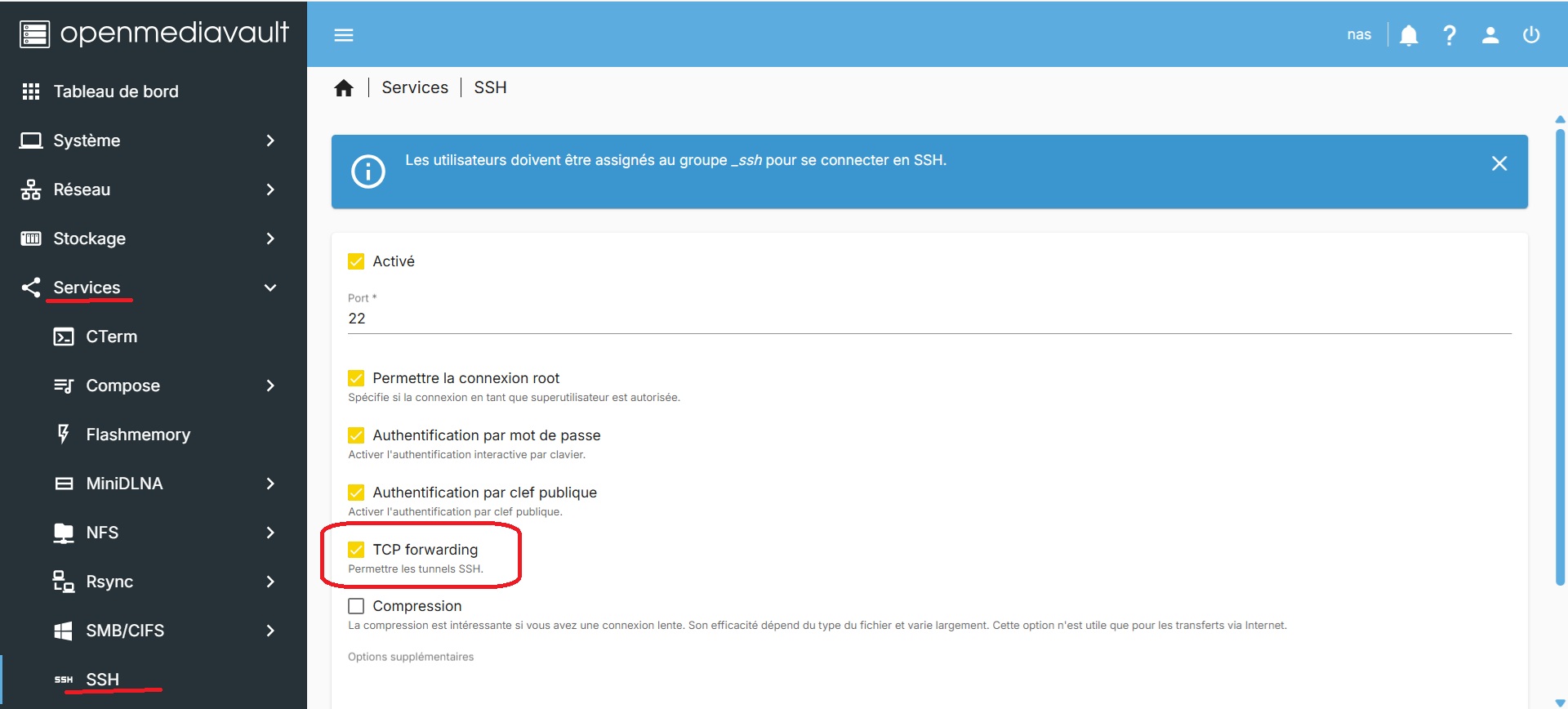
⚠️ Important: do not manually edit sshd_config as OMV may overwrite changes. You must go through the OMV interface.
The (clean) solution
In the OpenMediaVault web interface:
- Services → SSH
- Settings tab
Enable / verify:
- ✅ Allow TCP forwarding
- ✅ Allow tunneling
- ✅ Allow password authentication (if used)
Apply.
🎉 Perfect.
VS Code can now connect remotely to the Raspberry Pi without any issues.
What’s next?
All that remains is to:
- enable Docker in OpenMediaVault
- deploy my MO5-dedicated RAG server image
Day 5 bis…
Once the image is built and running, my API is accessible via port 8080.
In short:
http://nas→ NAS interface (yes, no certificate yet 😅)http://nas:8080→ RAG server API
It’s not very convenient to have to remember port numbers, especially if I want to host other services later.
👉 https://nas/mo5-knowledges-api would be the ideal address for my server!
So I set my sights on installing a reverse proxy…
But that… will be for another day 😉